
KiwiData provides tools that allow you to manage your domain's DNS, redirect your domain to another website, and configure email forwarding.
You can access these tools through your KiwiData Client Area.
How to Set Up a Domain Redirect
- Log in to your KiwiData Client Area.
- Go to Domains → My Domains.
- Find the domain you want to manage and click the green Active - Manage Button.
- Under Manage, click Manage Redirect.
- You will automatically be logged into the account and taken directly to the Redirects page.
- Under Add Redirect, select Permanent (301) for a normal permanent domain redirect.
- Select the domain you want to redirect.
-
In Redirects to, enter the full website address you want visitors sent to, for example:
https://www.example.co.nz/ - Click Add.
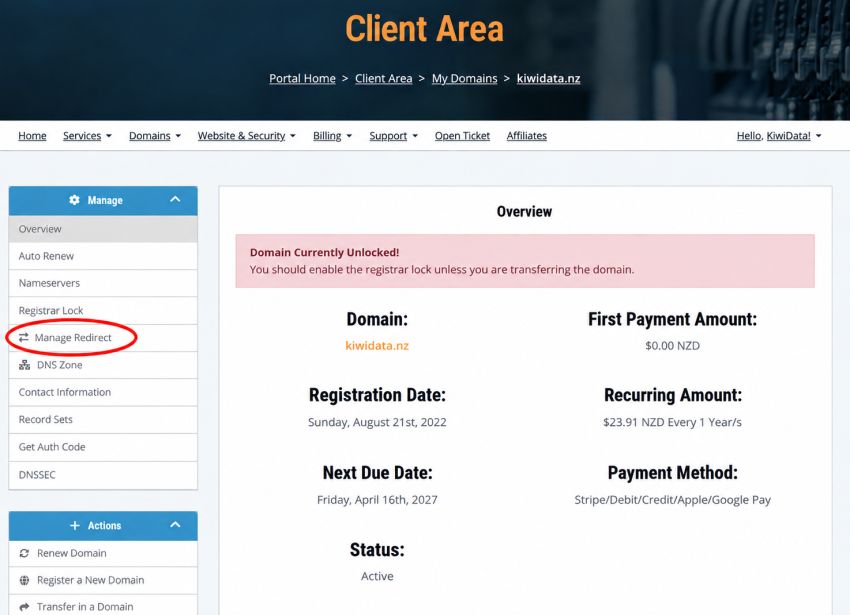
Which redirect should I use?
301 – Permanent Redirect
Use this when your domain is permanently being redirected to another website. This is the recommended option for most domain forwarding.
302 – Temporary Redirect
Use this when the redirect is temporary and you intend to use the original destination again later.
Managing Your DNS Records
You can also manage the DNS records for your domain.
This is particularly useful when your website or email is provided by another company. For example, your email provider may ask you to add DNS records such as:
- MX records – tell the internet where your email should be delivered.
- TXT records – commonly used for email verification, SPF and other services.
- CNAME records – commonly used to connect services or verify your domain.
- A records – point your domain or a hostname to an IP address.
Use the DNS management option for your domain to add the records supplied by your email, website or other service provider.
Important: Only change DNS records when you know what they are being used for. Incorrect DNS settings can cause your website or email to stop working.
Email Forwarding
You can also create email forwarders for your domain.
Once you are logged into the account, look under Tools on the left-hand side and select the email forwarding option.
An email forwarder lets you receive email at an address on your domain and automatically forward it to another mailbox.
For example:
accounts@yourdomain.co.nz → yourname@gmail.com
This can be useful when you want an email address using your own domain without maintaining a separate mailbox.
Setting Up an Email Forwarder
- Open your domain from the KiwiData Client Area.
- Click the green Active - Manage Here button.
- Access the email forwarding option under Tools on the left.
- Enter the email address you want to create or forward.
- Enter the destination email address where you want the messages delivered.
- Save the forwarder.
Once configured, email sent to the domain address will automatically be forwarded to the destination address.
Using Email With Another Provider
You do not have to use KiwiData for your email just because your domain is registered or managed with KiwiData.
If you use another email provider, they will normally provide the DNS records that need to be added to your domain.
For example, they may provide:
MX, TXT, CNAME or other DNS records
Add these records to your KiwiData DNS management area exactly as supplied by your email provider.
If you are unsure about adding or changing DNS records, contact KiwiData Support before making the changes.
KiwiData Hosting Services
http://www.kiwidata.nz/clients
updated 6.9.2026

